This tutorial guides you through managing queue logins and navigating call panels within the 3CX application.
1. Introduction
You'll learn how to log in and out of queues and access specific call panels to streamline your communication workflow.
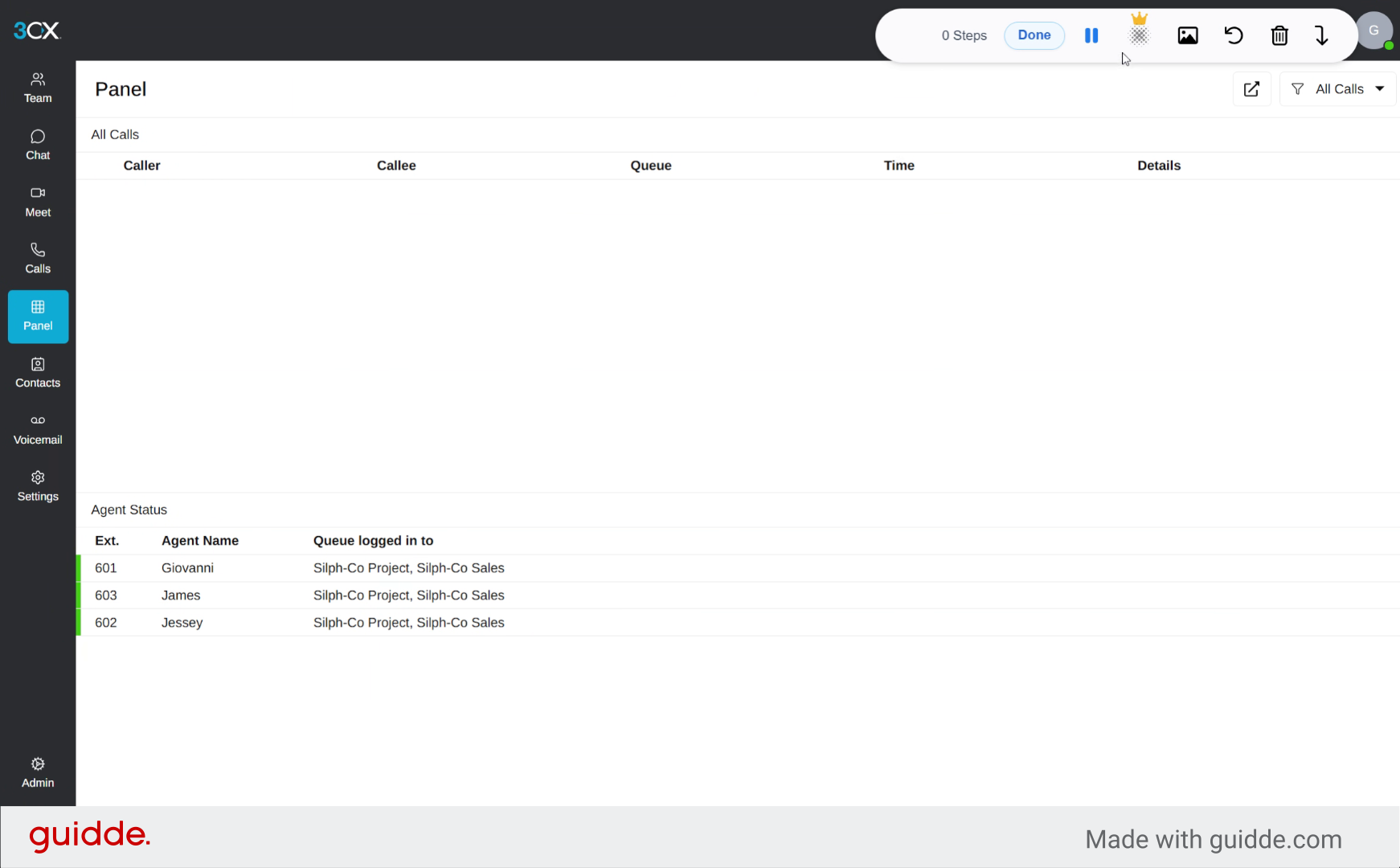
2. Select Contact Initial G
Select the contact initial "G" to filter and display contacts starting with that letter, simplifying your search.
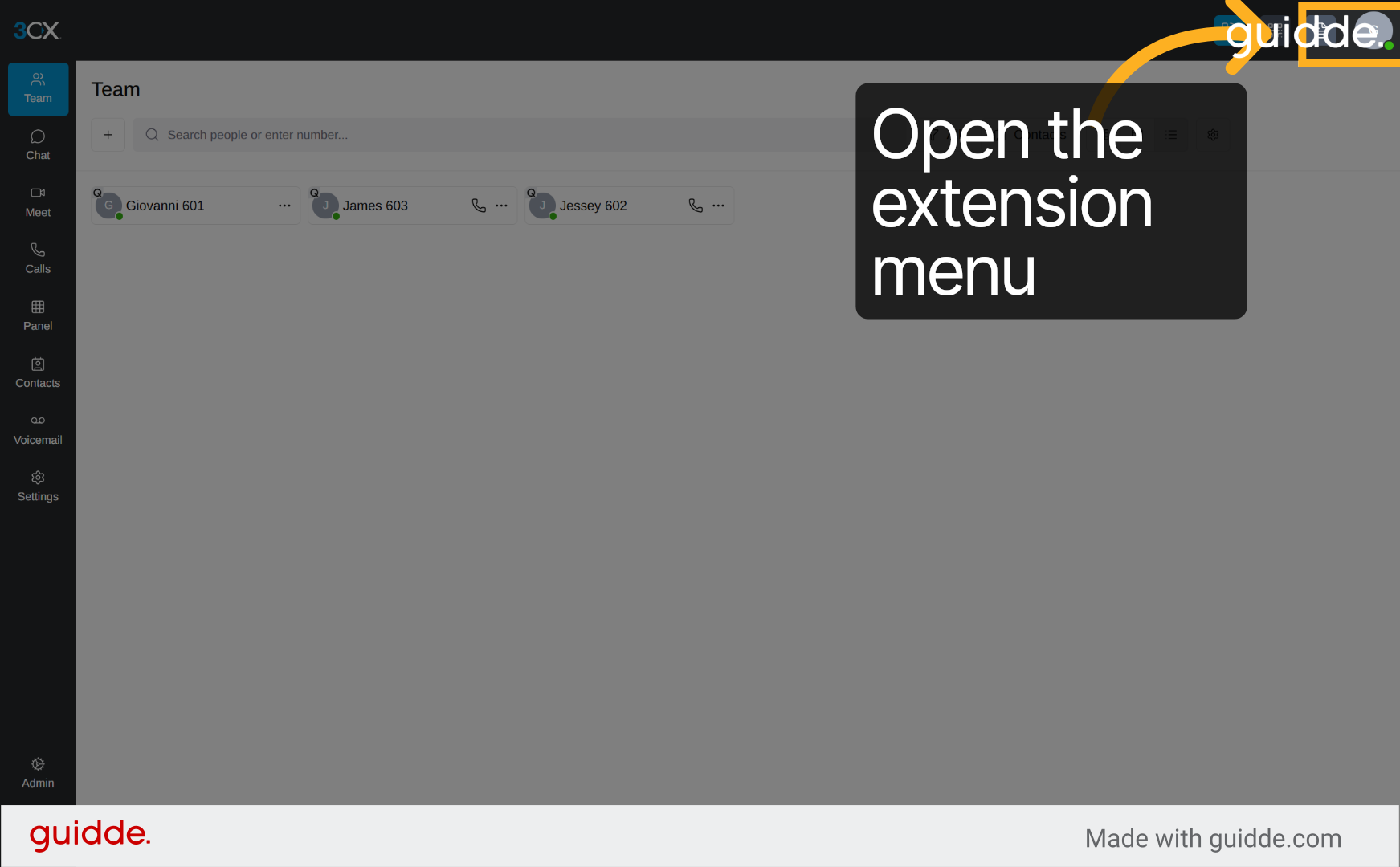
3. Log Out from Queue
Click "Logout from Queue" to remove yourself from the selected call queue, pausing incoming calls from that group.
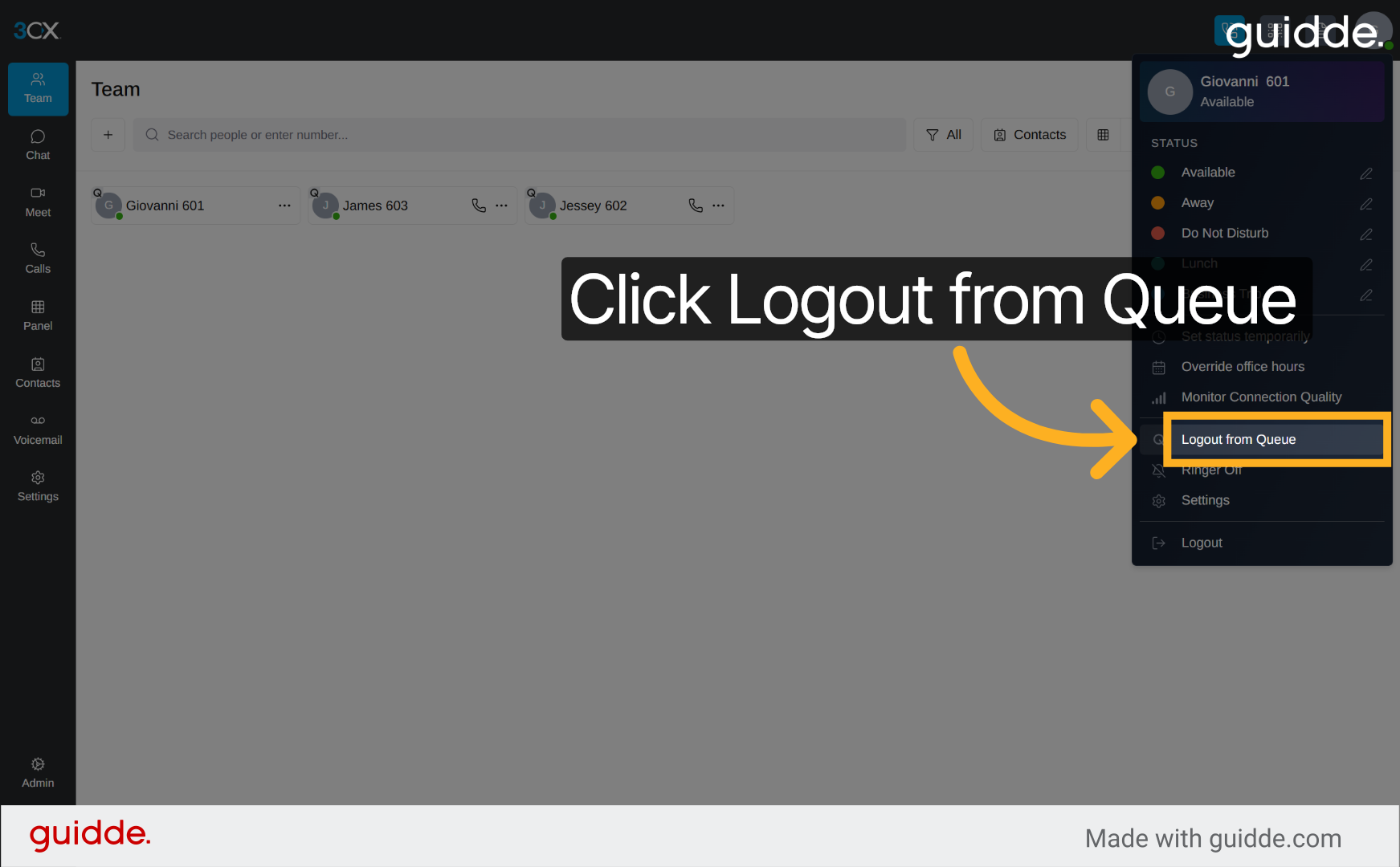
4. Re-select Contact Initial G
Click "G" again to refresh the contact list and prepare for logging back into the queue.
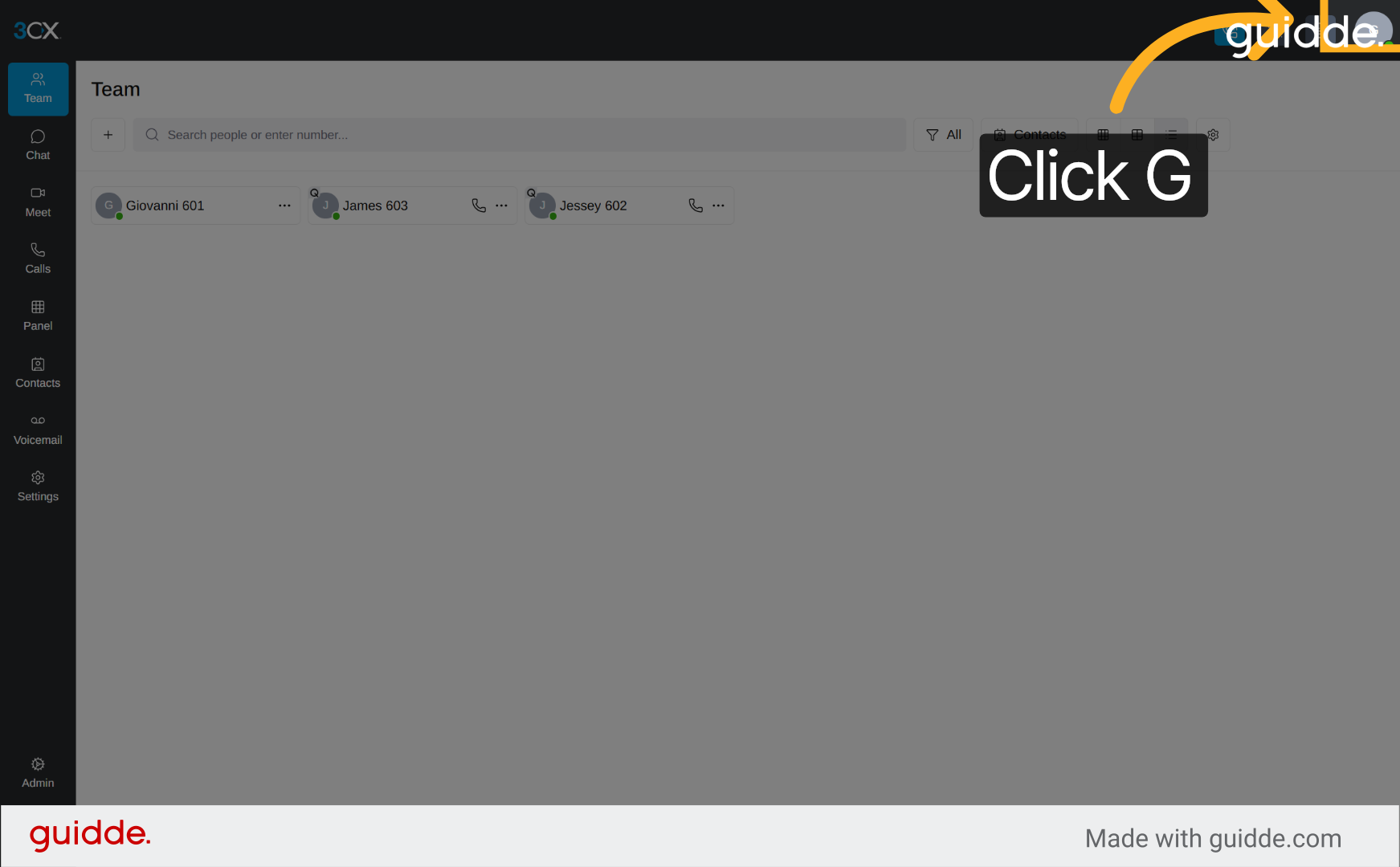
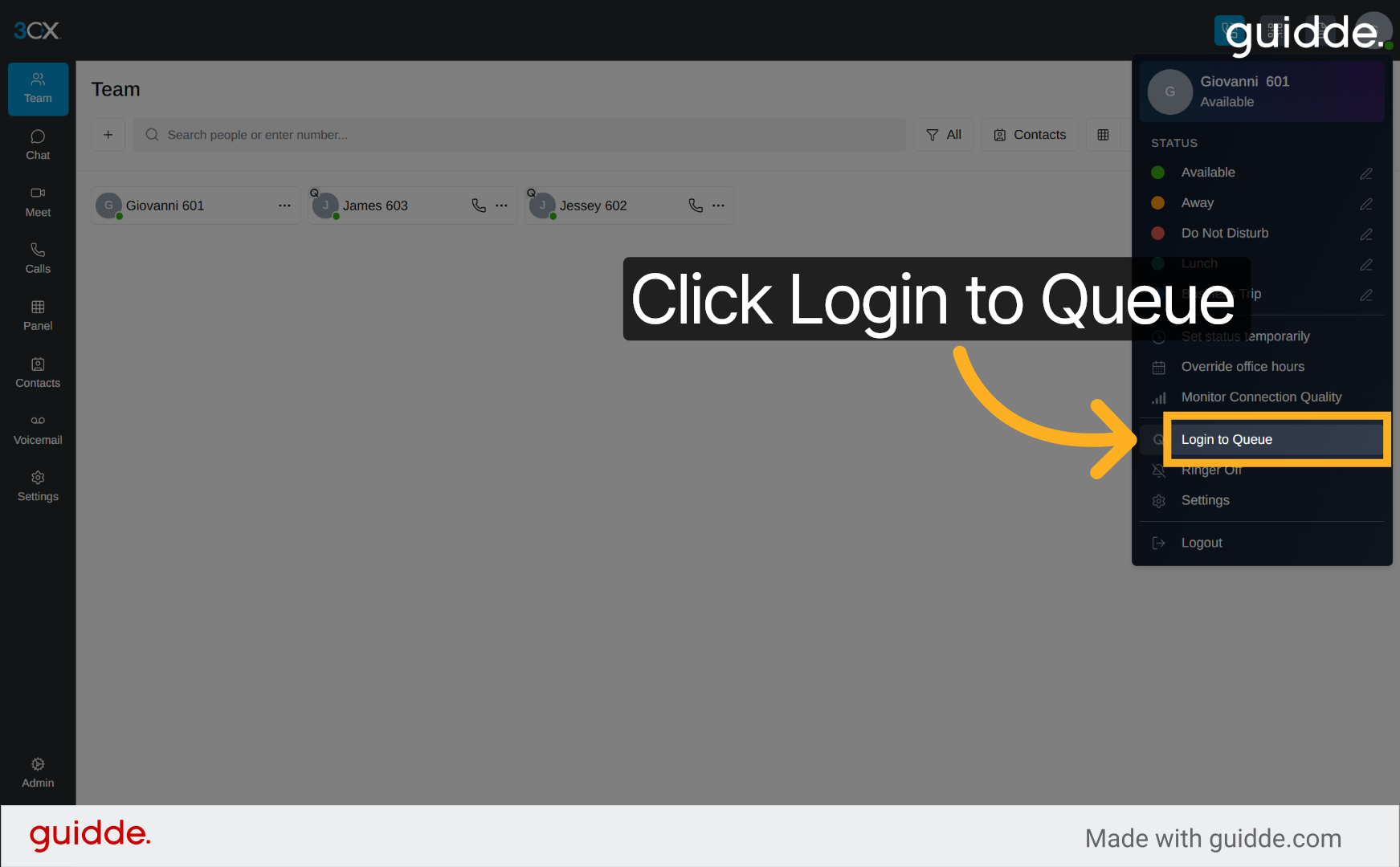
5. Log In to Queue
Click "Login to Queue" to rejoin the call queue, enabling you to receive calls routed to that group.
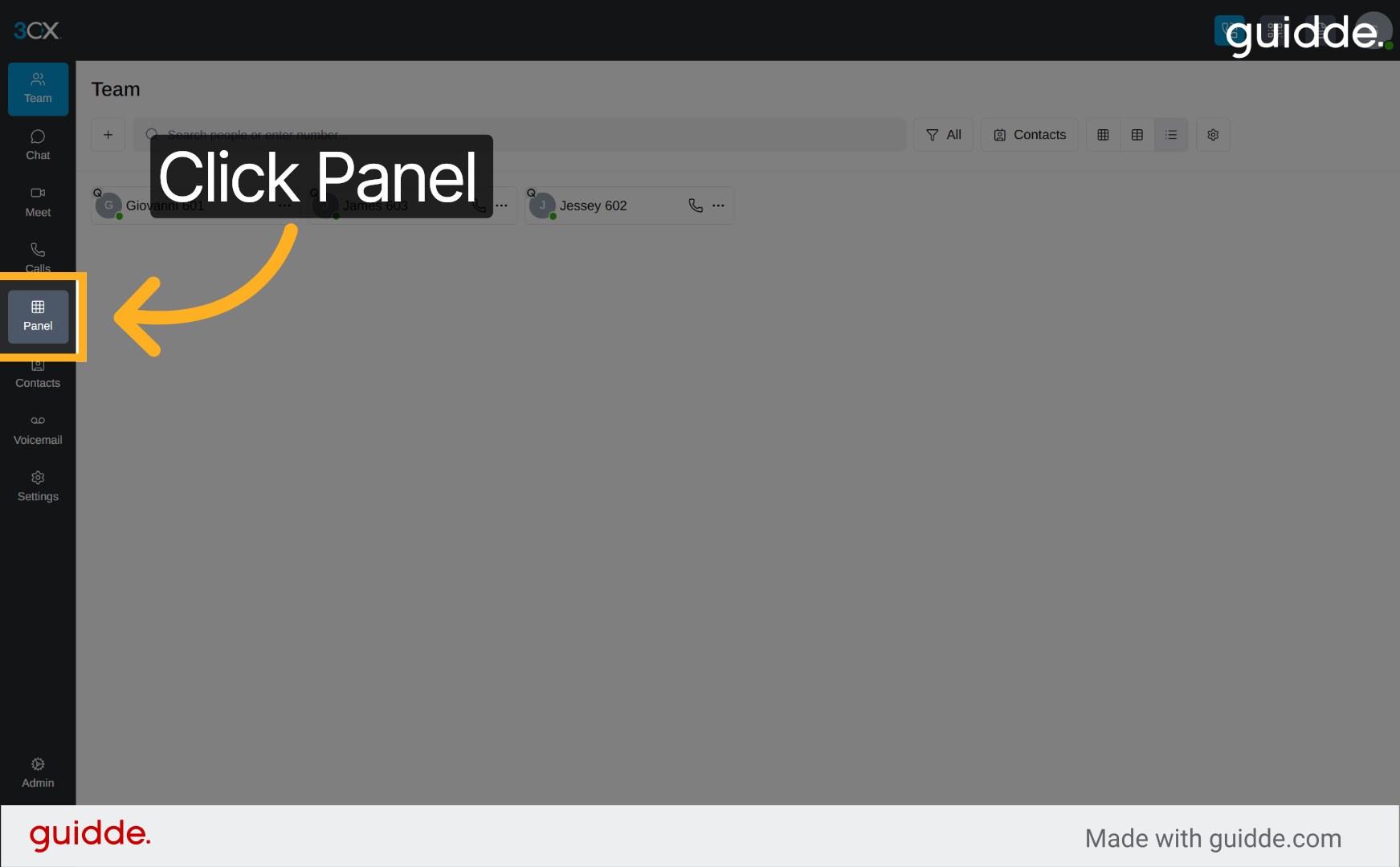
6. Open Call Panel
Click "Panel" to open the call management interface where you can monitor and control active calls.
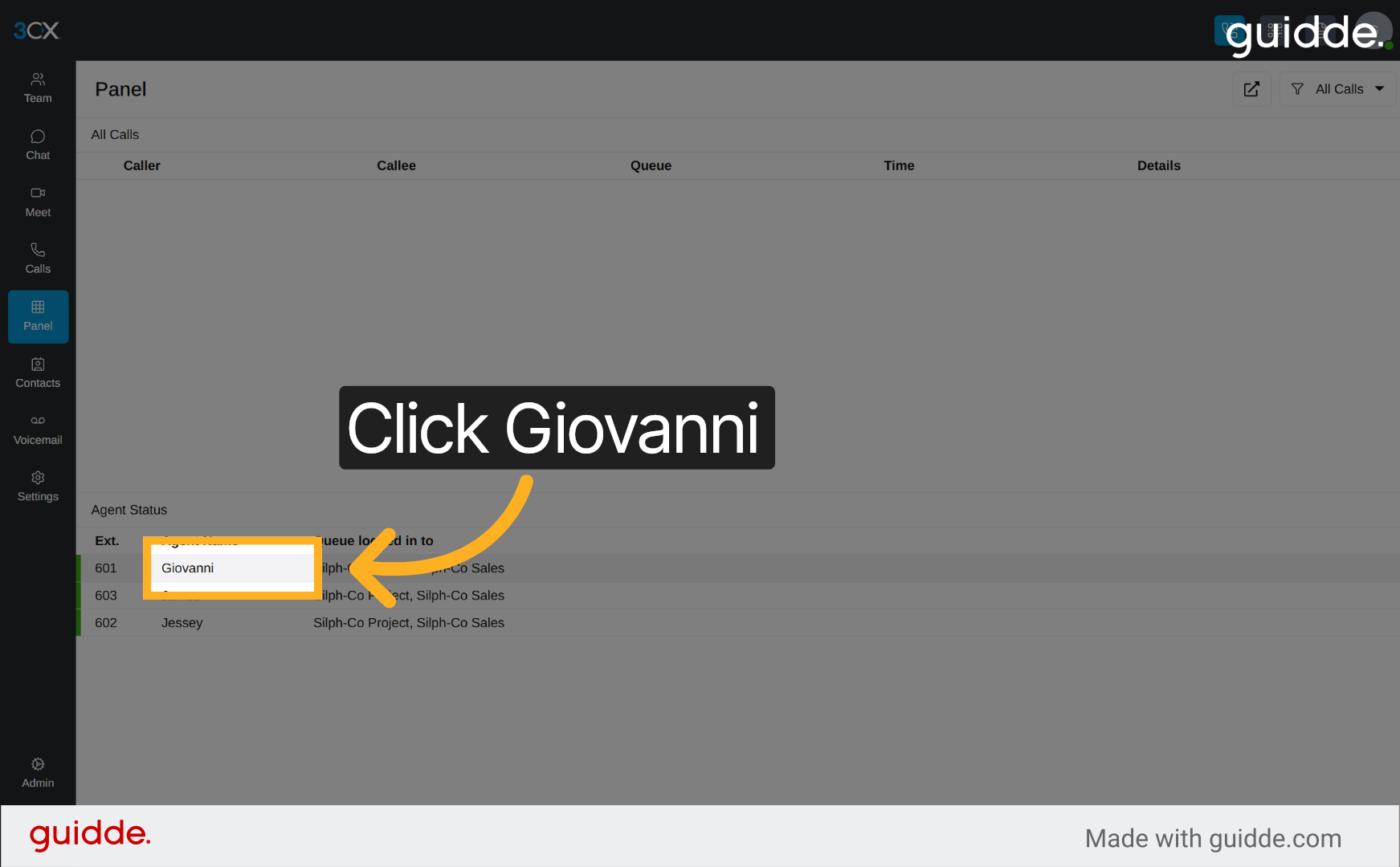
7. Select Contact Giovanni
Click "Giovanni" within the call panel to view detailed call information and manage interactions for this contact.
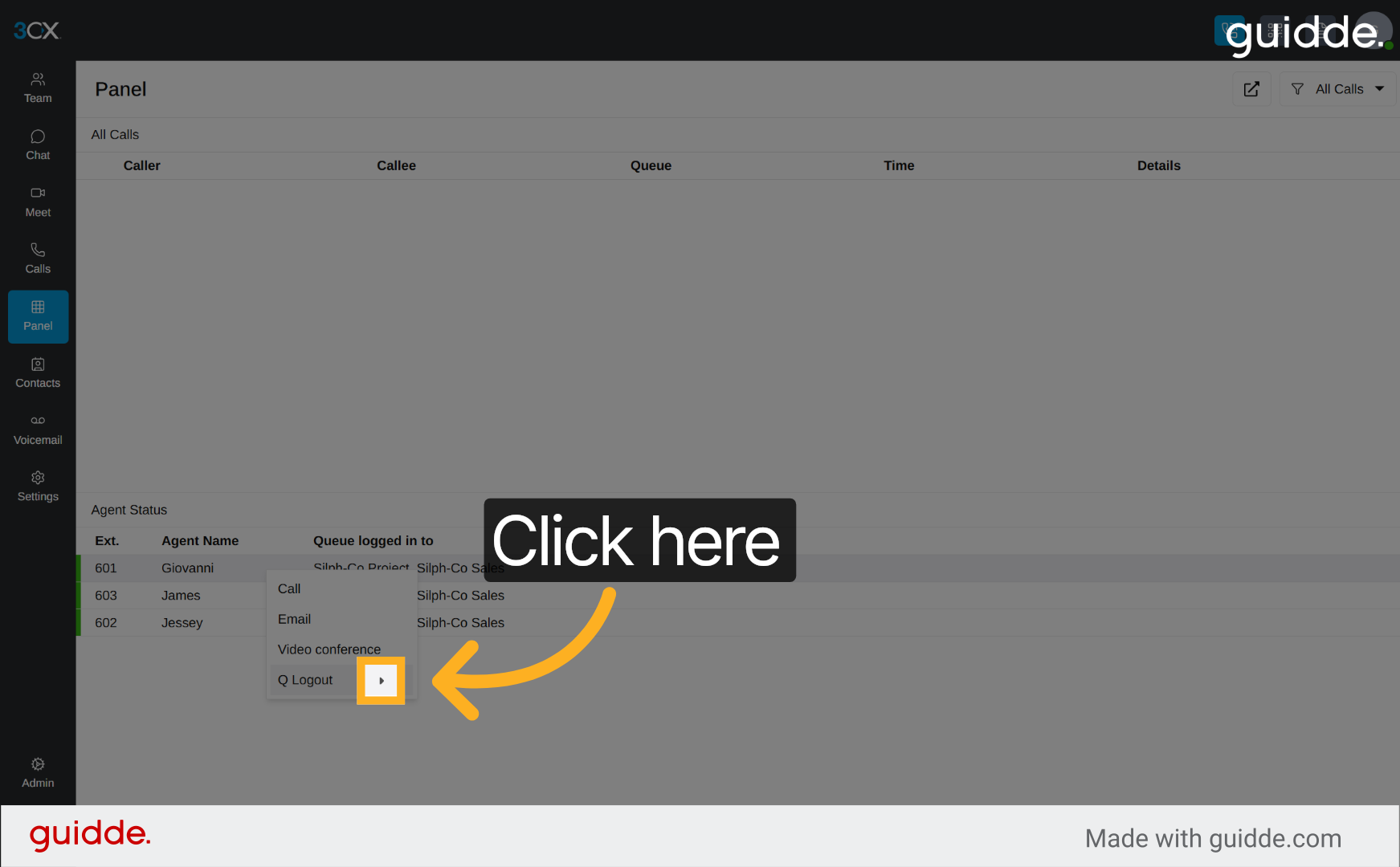
8. Access Call Options
Click here to open additional call options and settings related to the selected contact or call session.
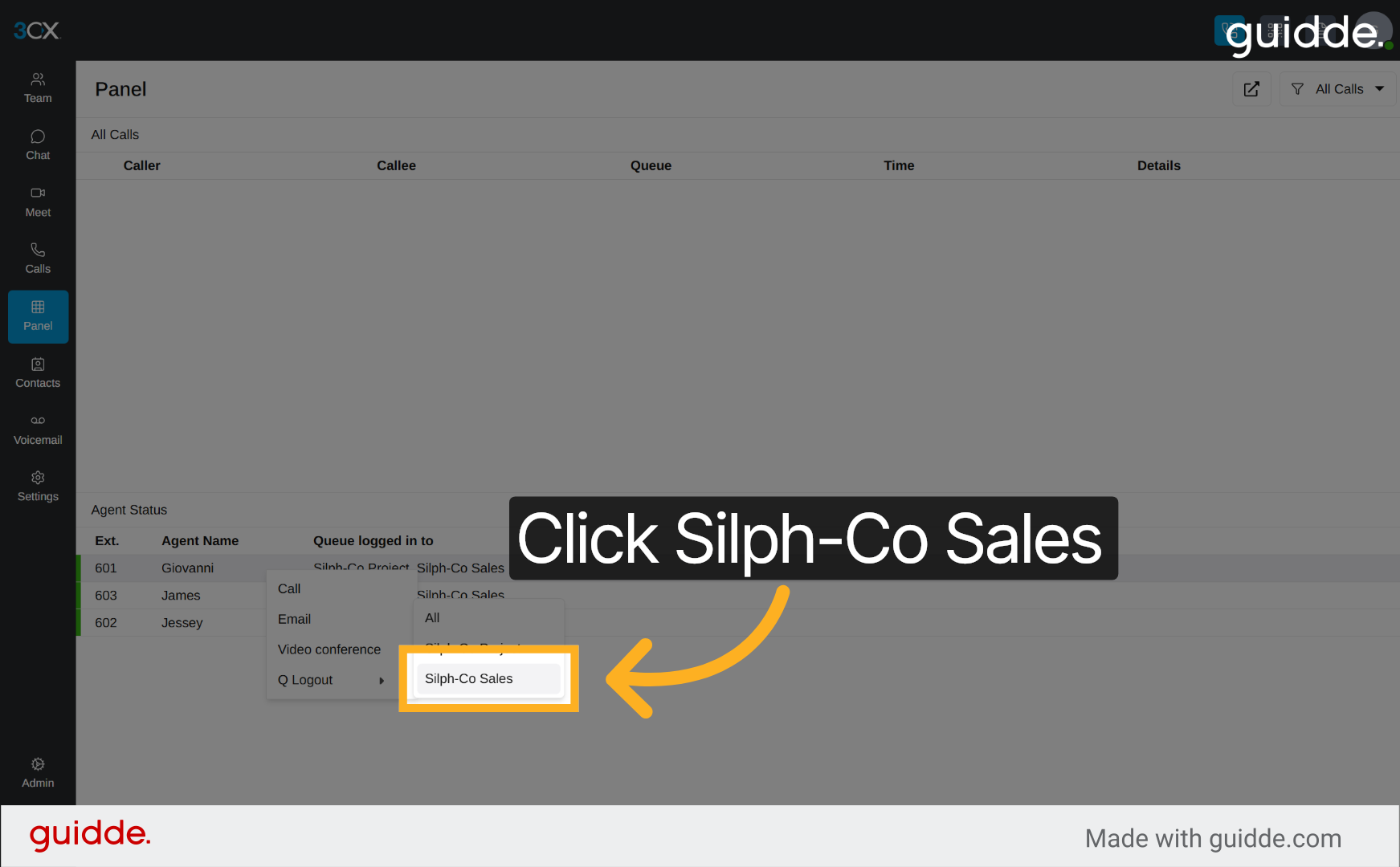
9. Choose Silph-Co Sales Queue
Click "Silph-Co Sales" to switch to the sales queue, focusing your call management on this specific team.
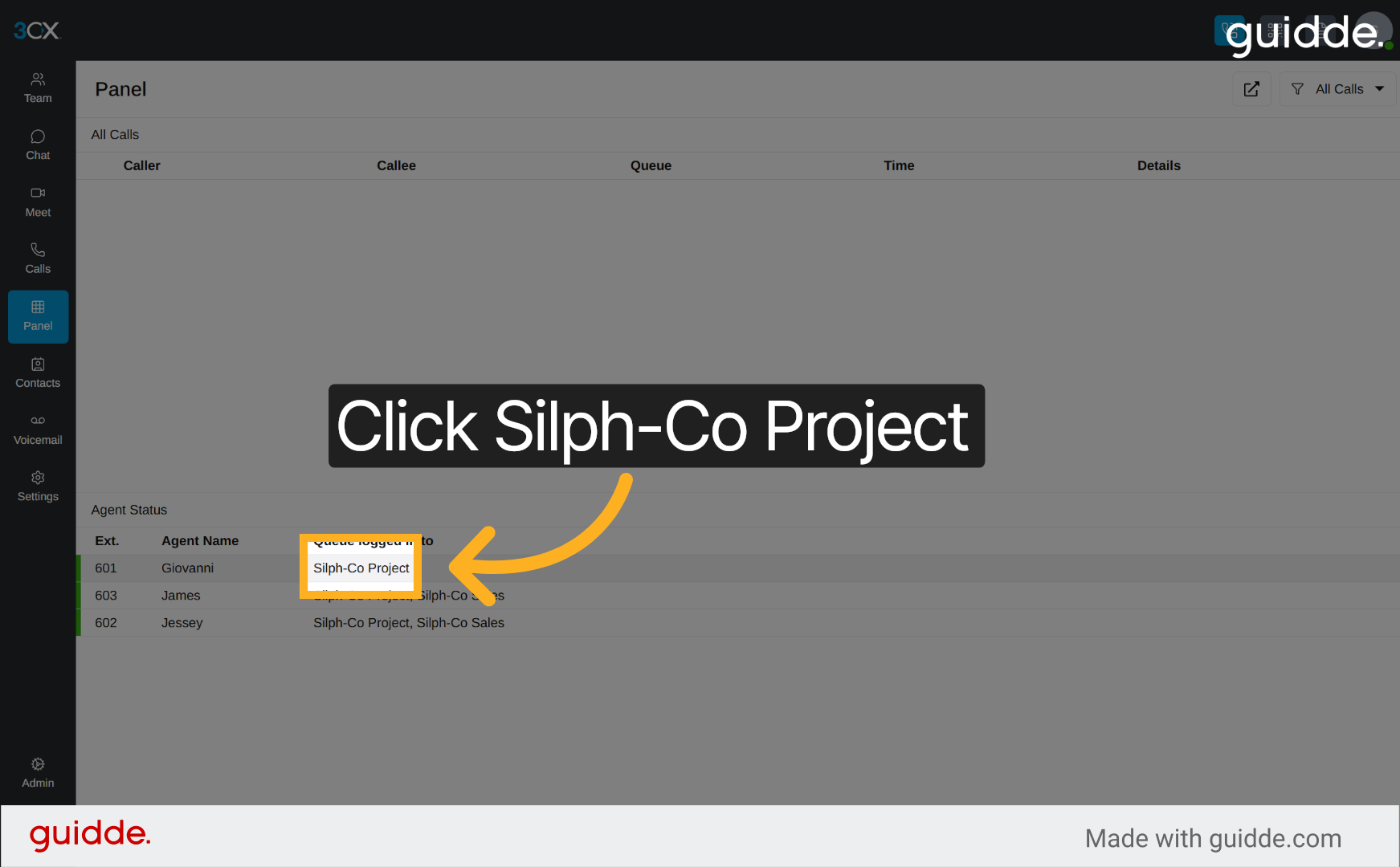
10. Switch to Silph-Co Project Queue
Click "Silph-Co Project" to access the project queue, allowing you to manage calls related to ongoing projects.
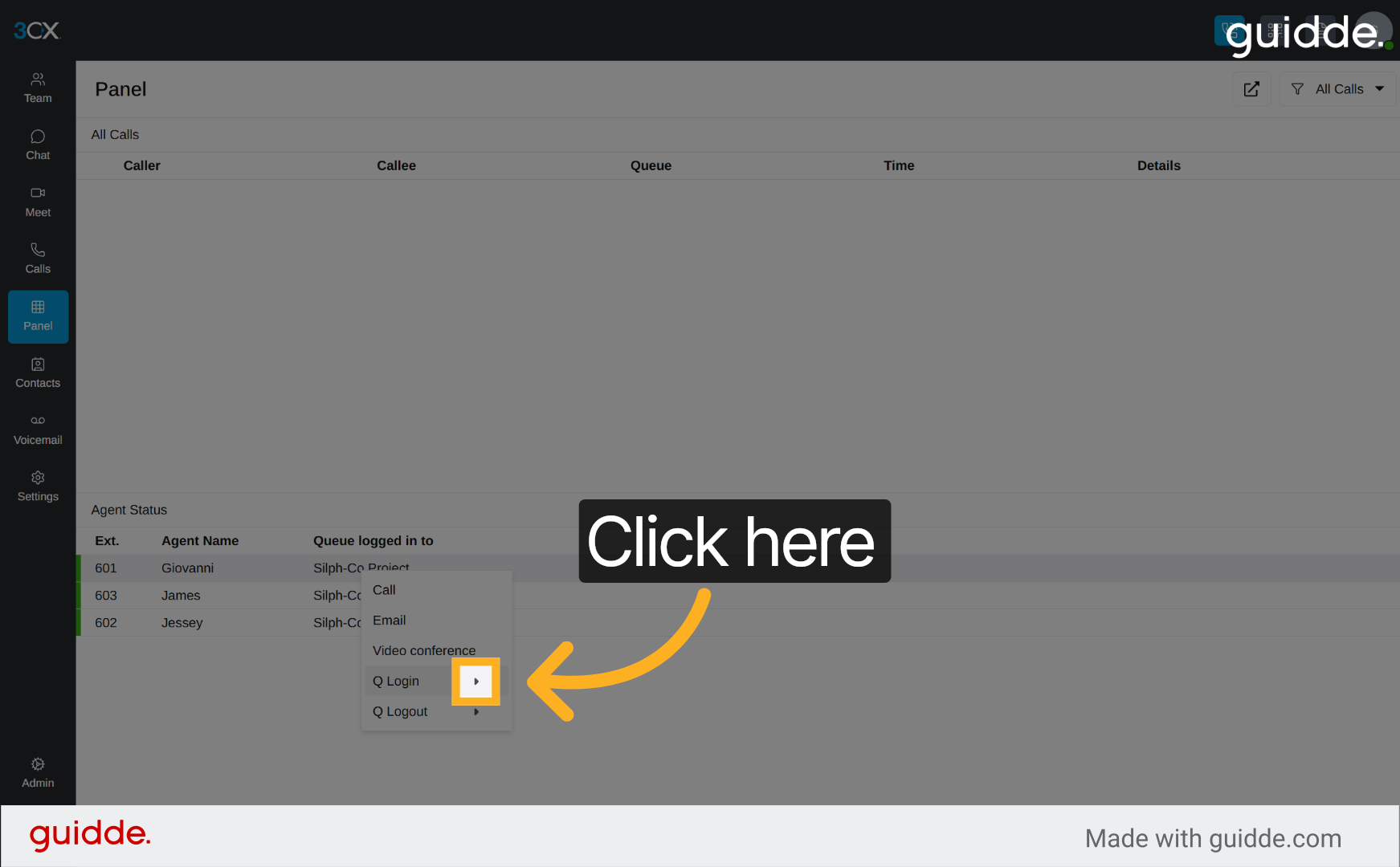
11. Open Additional Call Options
Click here to reveal more call options for further control over your call handling and settings.
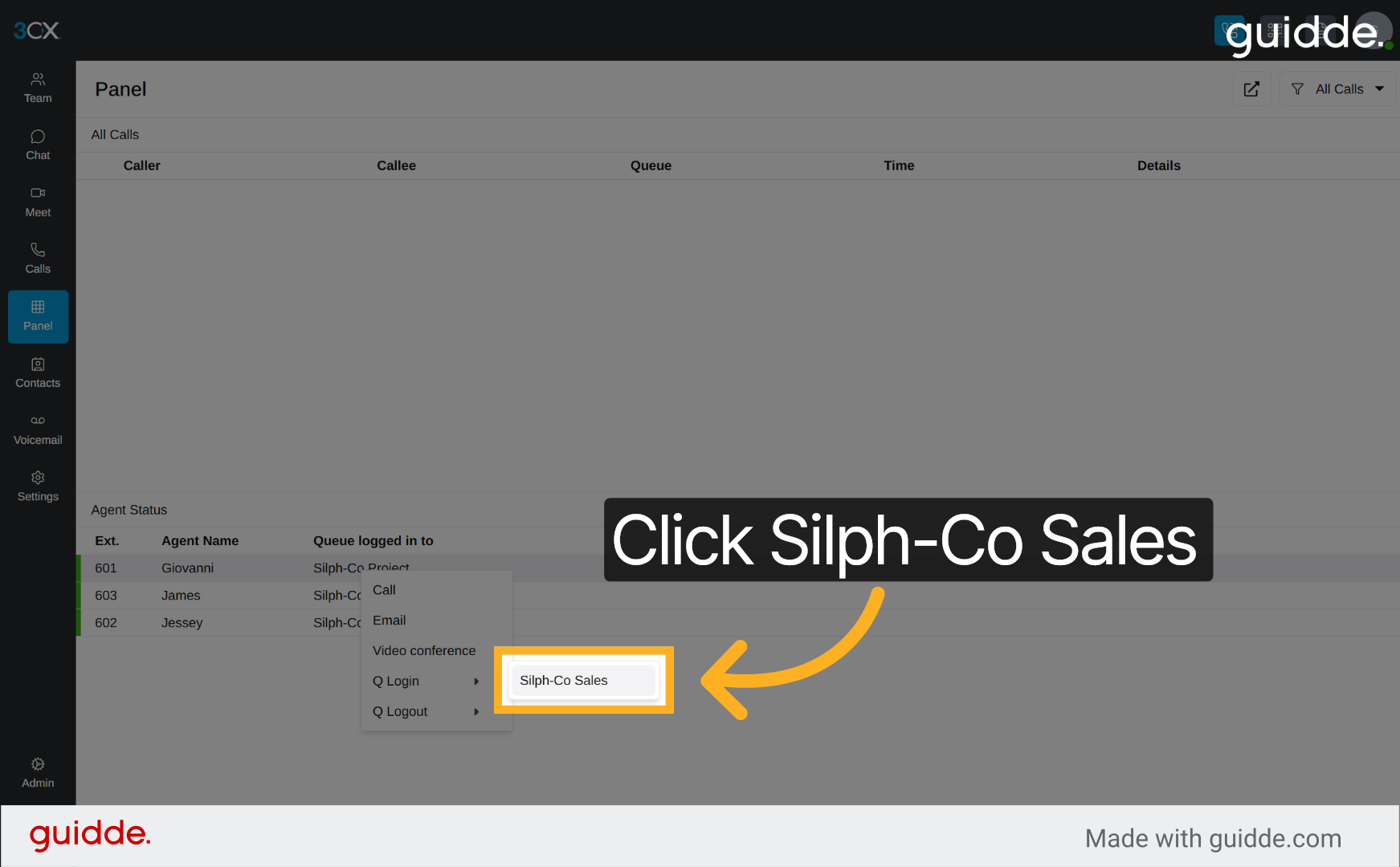
12. Return to Silph-Co Sales Queue
Click "Silph-Co Sales" again to return focus to the sales queue and manage calls within that team.
You have successfully managed queue logins and accessed call panels in 3CX. Use these steps to efficiently control your call handling and improve team coordination.
Was this article helpful?
That’s Great!
Thank you for your feedback
Sorry! We couldn't be helpful
Thank you for your feedback
Feedback sent
We appreciate your effort and will try to fix the article