Purpose
This article outlines the process for registering Fortinet appliances and licences within FortiCloud and organising them under the appropriate customer folder.
Prerequisites
- Access to FortiCloud
- Access to 1Password
Procedure
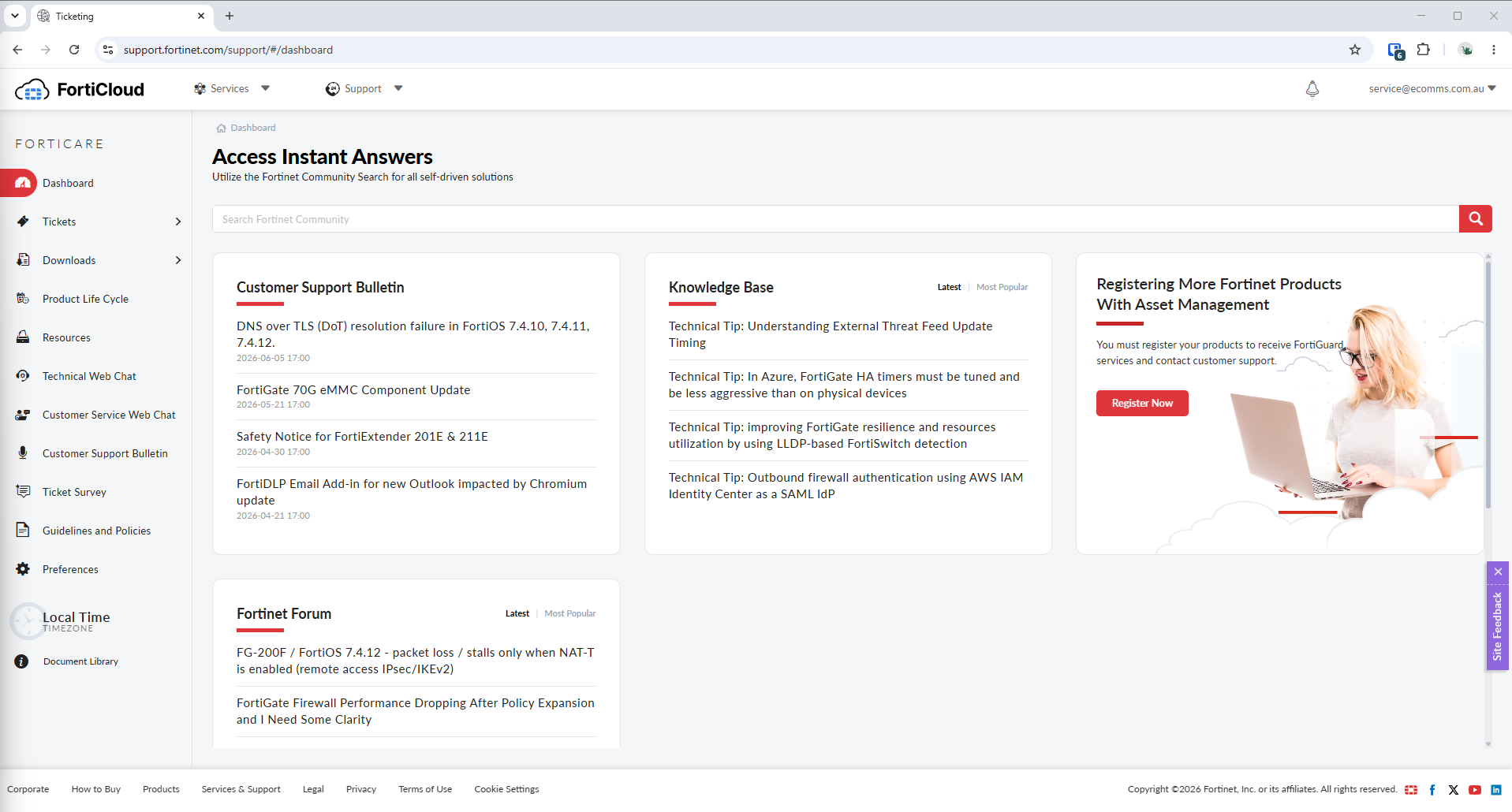
Step 1 - Log In to FortiCloud
Navigate to https://support.fortinet.com/support/#/dashboard
NB: FortiCloud credentials are stored within 1Password
Step 2 - Navigate to Asset Management
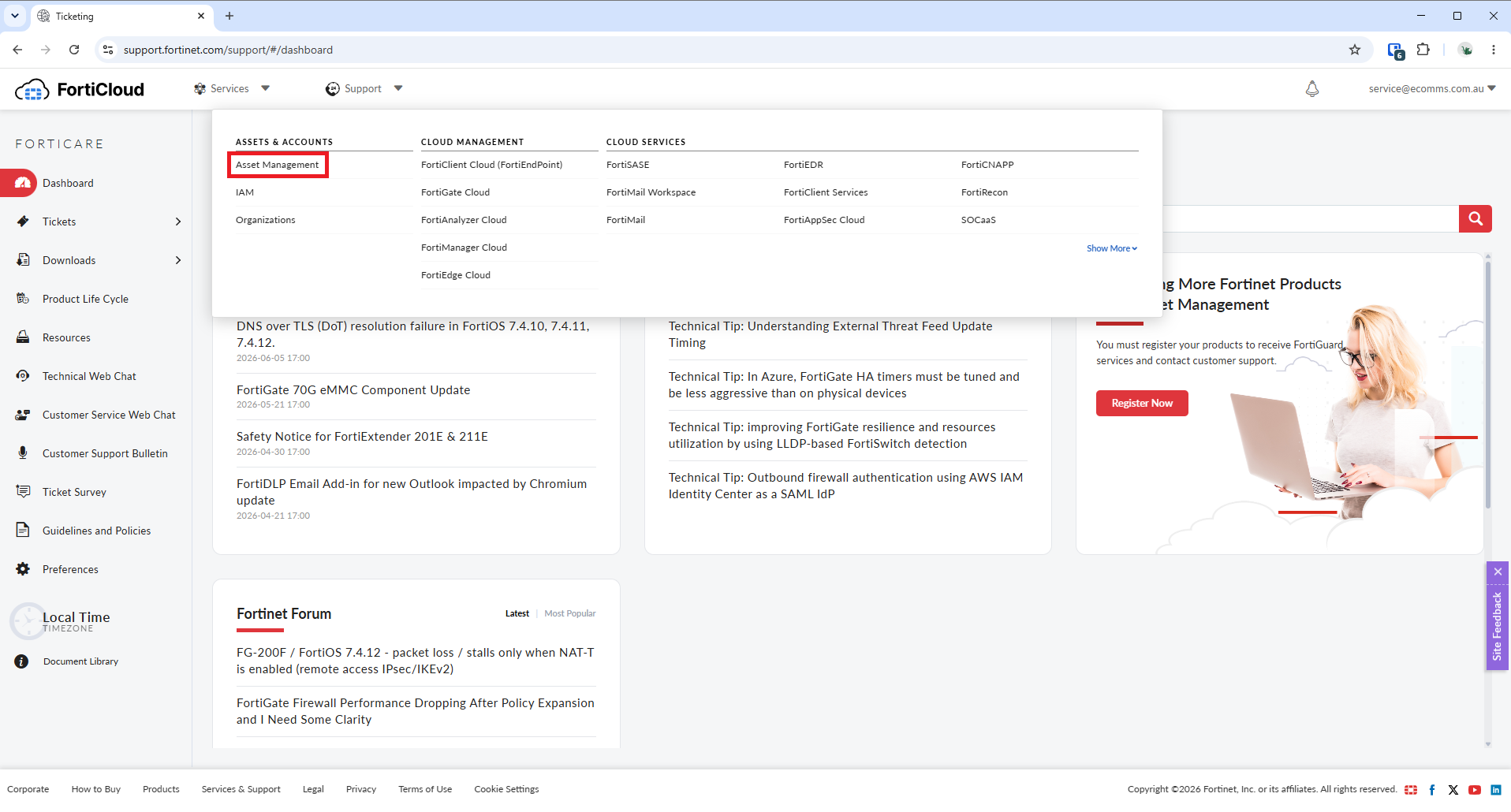
- Select Services from the top menu
- Click Asset Management
Step 3 - Access Customer Assets
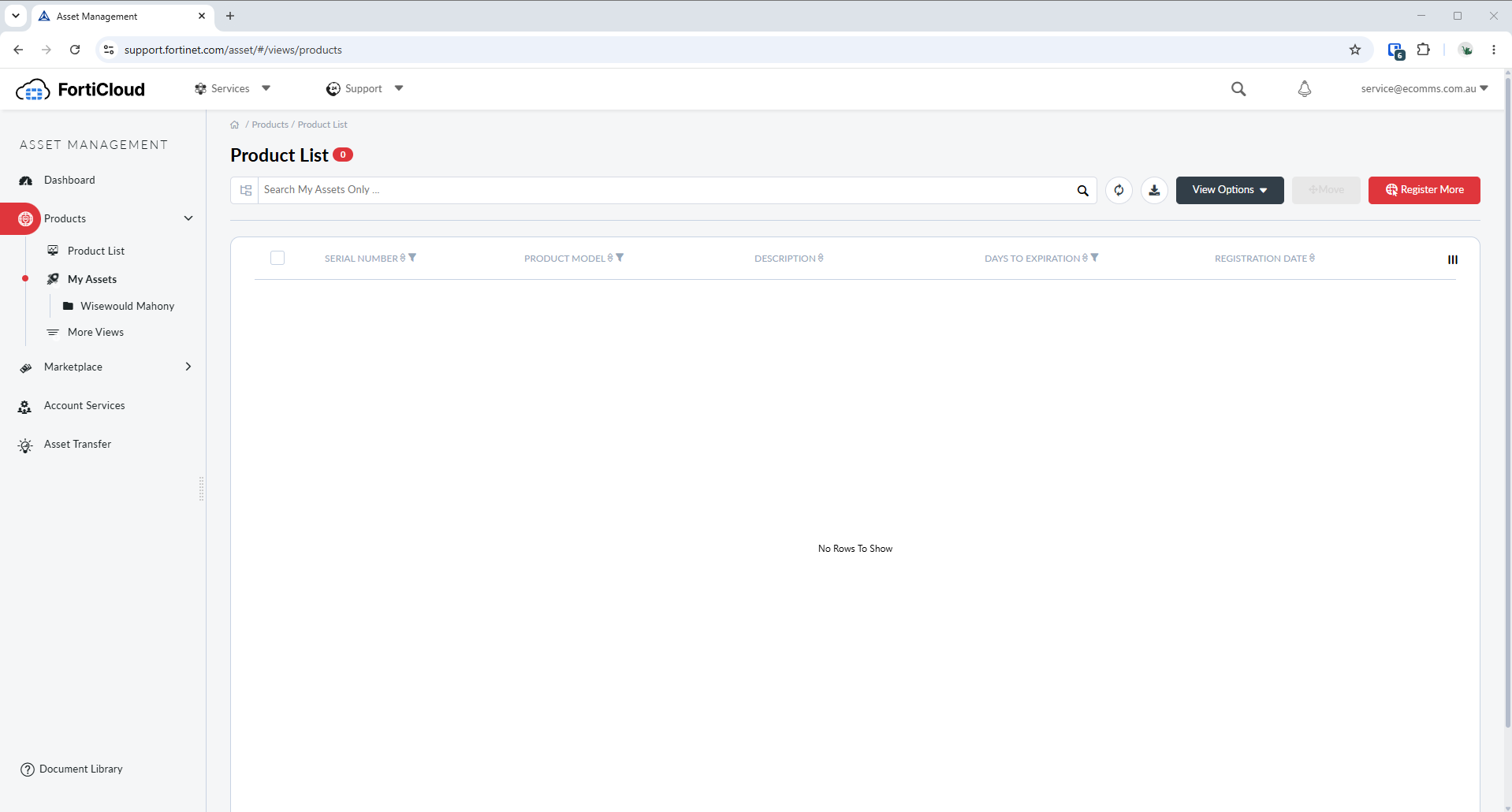
- Expand the Products menu on the left-hand navigation pane
- Select My Assets
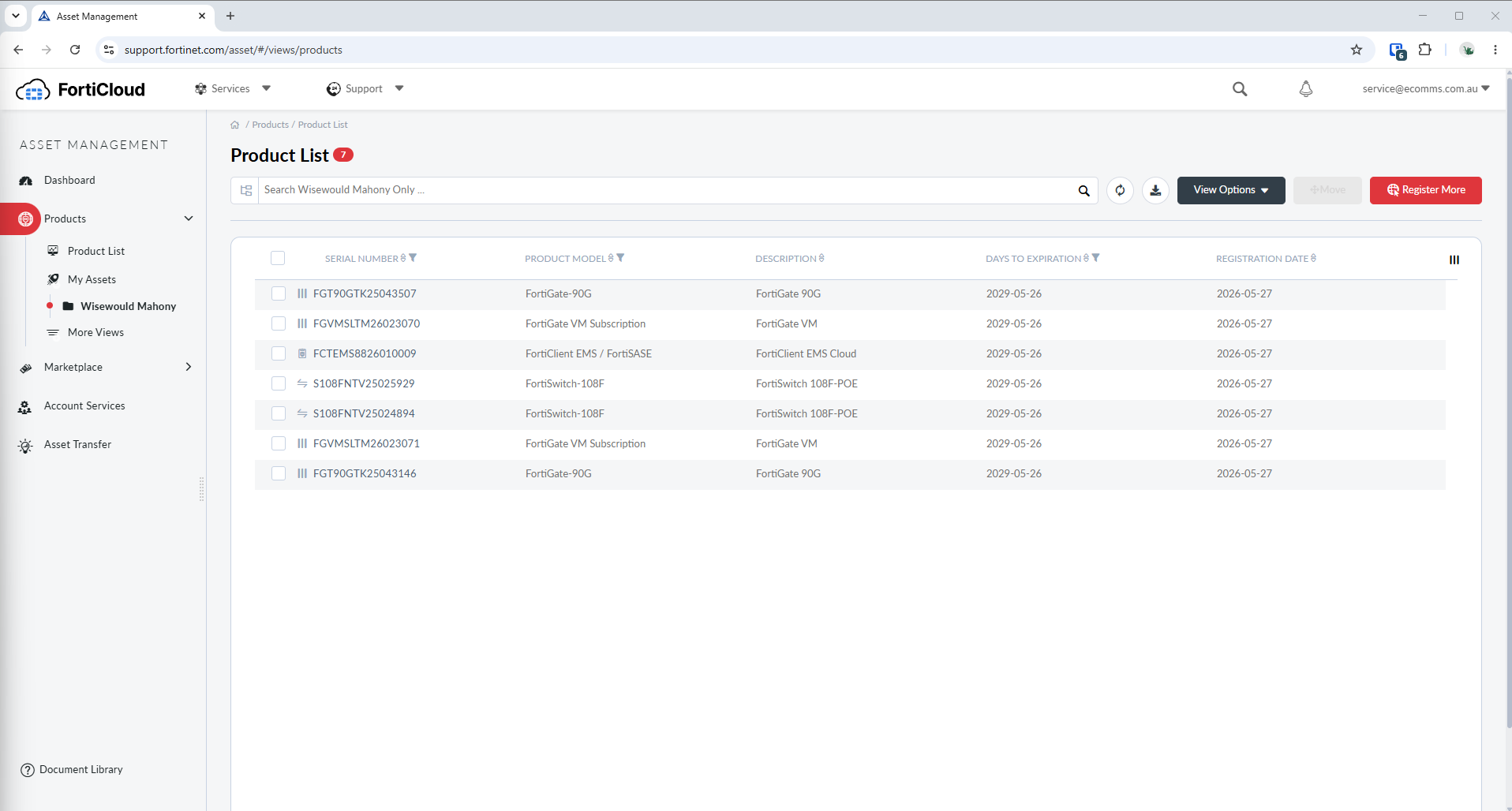
Step 4 - Review Existing Customer Assets
The example below demonstrates how a registered appliance and associated licence will appear within a customer folder.
Step 5 - Create a New Customer Folder
For new customers:
- Click on the Settings (Wheel) icon:

- Select Add a Sub-Folder
- Enter the customer name, example:
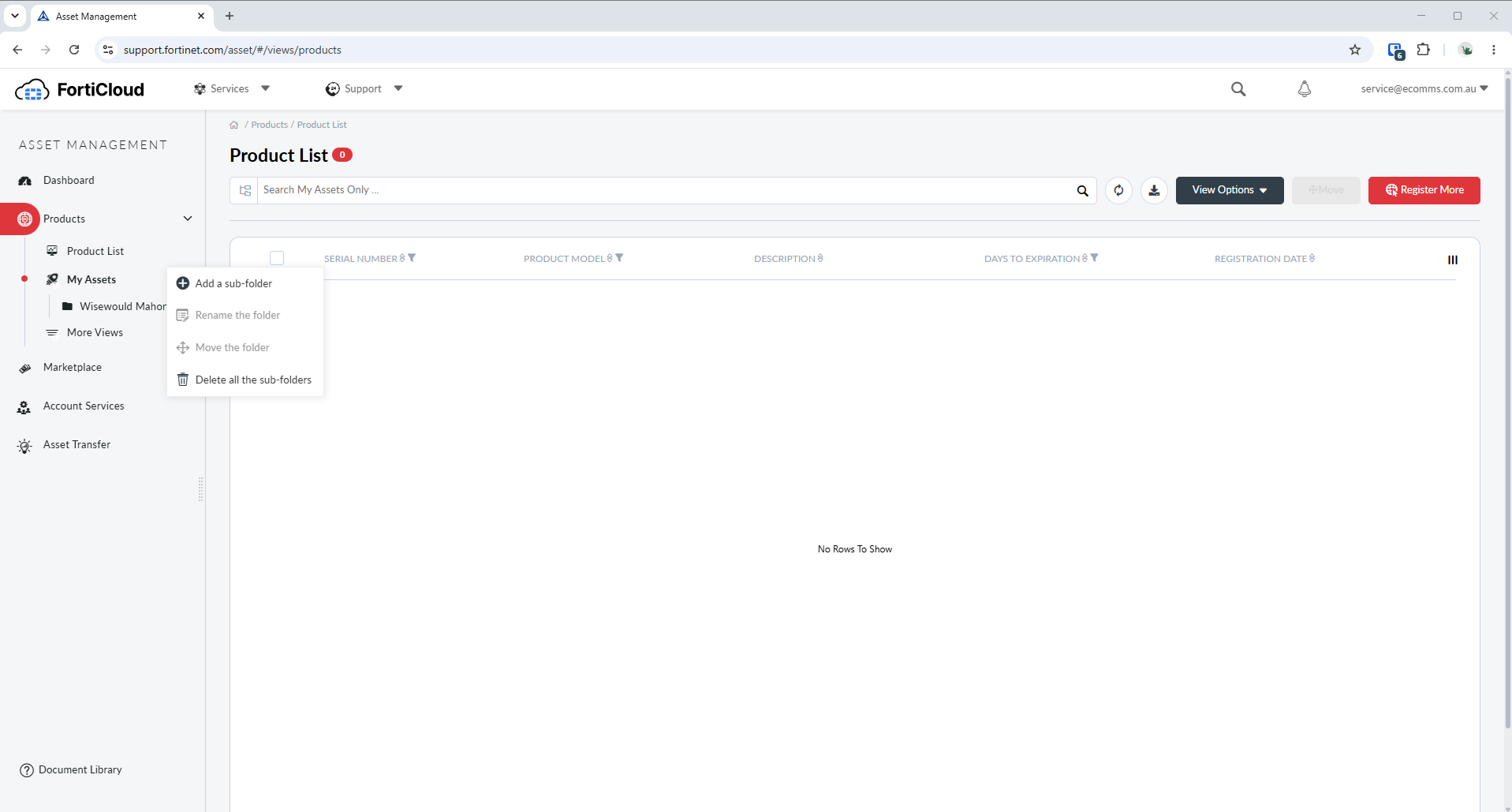
Step 6 - Register Appliances and Licenses
- Open the customer folder.
- Register the appliance.
- Register the associated licences.
- Confirm the assets are displayed within the correct customer folder.
Refer to the following training recordings for the registration process:
Was this article helpful?
That’s Great!
Thank you for your feedback
Sorry! We couldn't be helpful
Thank you for your feedback
Feedback sent
We appreciate your effort and will try to fix the article